Topic Updated: April 01, 2025
Launchpad - Quick Access
All Launchpad applications are actually Web pages and are, therefore, accessed using a background URL. Use the LaunchpadInternalLinks setting to define the internal shortcut links (URLs) to display each Launchpad page. Each shortcut is displayed as an icon in the Launchpad page and is displayed to any user who is assigned to the associated profile.
Input Types: Alphanumeric, Boolean, Drop-down, Graphic, Named Color
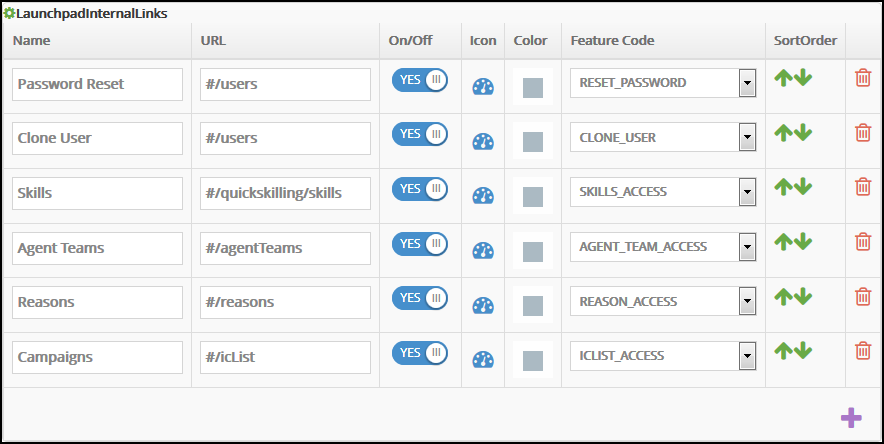
Enter the following information to define or update an internal link:
Name - Enter a descriptive name for the internal link. You can enter up to 32 alphanumeric characters.
URL - Enter the URL or path that is used to display the internal link. Because this setting defines internal links, the URL should point to the specific function that contains the desired task.
On/Off - The decision icon determines if the internal link will be displayed and available to users. You can click on the decision icon to change the current setting: If the decision icon is set to "YES", the internal link is displayed and available to users; if the decision icon is set to "No", the internal link is hidden and unavailable to users.
Icon - When you define an internal link, the "gauge" icon (
 ) is the default icon. You can click on the default icon to display a palette of available icons from which you can choose an icon that is appropriate for the internal link.
Color - When the internal link is initially defined, this column displays the default background color for the associated icon. Click on the default color to display the color palette from which you can select a different color to use as the background color.
Feature Code - This box names the specific task that is displayed as an internal link and is activated when a user clicks on the icon displayed in the Launchpad page. Click anywhere in the box to display the menu. Scroll up or down to locate the named feature code and click on the feature code that is used for the internal link.

Additional Function:
In the LaunchpadInternalLinks pane, click on the Add New Row button (
 ) in the bottom right corner of the pane to add a new row in which you can define a new internal link that will be displayed in the Launchpad page.
If you no longer need a specific internal link, you can click on the Trash icon (
 ) that is associated with the internal link entry to remove the entire row. Once removed, you cannot recover the internal link entry.
You can change the order in which the internal links are displayed in the Launchpad page. The order in which they are listed in the LaunchpadInternalLinks setting pane is the order in which the codes will be listed in the Launchpad page. To change the order, you can move an entire row up or down by clicking on the appropriate arrow in the SortOrder column.


Please let us know how we can improve this topic by clicking the link below:
© TTEC Digital 2025


