Get click-to-dial attributes
The flow checks if a Genesys Cloud interaction was initiated by a Click-to-Dial action, retrieves the record ID of the Salesforce record clicked, and creates a new task to screen pop as a sub tab.
Important: This click-to-dial flow must be configured to trigger on connect. See Configure OneView settings
For more information on the data available, see Click-to-dial data.
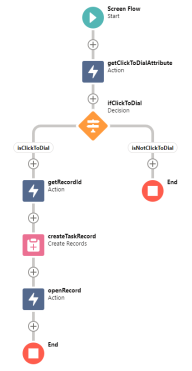
- Begin a new screen flow.
- Add an Action element to your canvas. From the Action
search field, type ’OneView’ and scroll down to the component actions.
Select OneView - Get Attribute Action.
- Enter a Label and API Name for this flow action. For example, getClickToDialAttribute.
- In the attributeName Input Value
field, enter
oneView_clickToDial. - In the conversationId Input Value
field, select New Resource.
- Select a Resource type of Variable.
- API name = conversationId
- Data type = Text
- Select both Available for input and Available for output.
- Click Done.
- Add a Decision element to your
canvas.
- Enter a Label and API Name for this flow element. For example, IfClickToDial.
- Enter a Label and API Name for a New Outcome. For example, IsClickToDial.
- Configure the Outcome Details:
Parameter Input Condition Requirements to Execute Outcome All Conditions are Met Resource Select Outputs from getClickToDialAttribute > attributeValueOperator Equals Value True - Click the Default Outcome and edit the Label, IsNotClickToDial.
- Click Done.
- Add an Action element to your canvas. From the Action
search field, type ’OneView’ and scroll down to the component actions.
Select OneView - Get Attribute Action.
- Enter a Label and API Name for this flow action. For example, getRecordId.
- In the attributeName Input Value
field, enter
recordId. - In the conversationId Input Value
field, select New Resource.
- Select a Resource type of Variable.
- API name = conversationId
- Data type = Text
- Select both Available for input and Available for output.
- Click Done.
- Add a Create Records element to
the canvas.
- Enter a Label and API Name for this flow action. For example, createTaskRecord.
- In the object field, enter
Task. - Set Field Values for the Task
Field Value Description Select Outputs from getClickToDialAttribute > attributeValueWhoId Select Outputs from getRecordId > attributeValue - Click Done.
- Add an Action element to your canvas. From the Action
search field, type ’OneView’ and scroll down to the component actions.
Select OneView - Open Record In Sub Tab.
- Enter a Label and API Name for this flow element. For example, openRecord.
- Set Input Values:
Field Value object type Task recordId Select TaskId from createTaskRecordvariable. (The id from the createTaskRecord element.)Active Select GlobalConstant.TrueConversation Id Select conversationIdvariable - Click Done.
- Connect the elements in the flow.
- Save and name the flow.
Reminder: This click-to-dial flow must be configured to trigger on connect. See Configure OneView settings > step 8 to configure Flow Triggers.