Sign Into Cisco Webex
After signing into Microsoft Dynamics 365, you must sign into your Cisco Webex Contact Center account as well.
Signing Into Cisco Webex
Sign into Webex by doing the following:
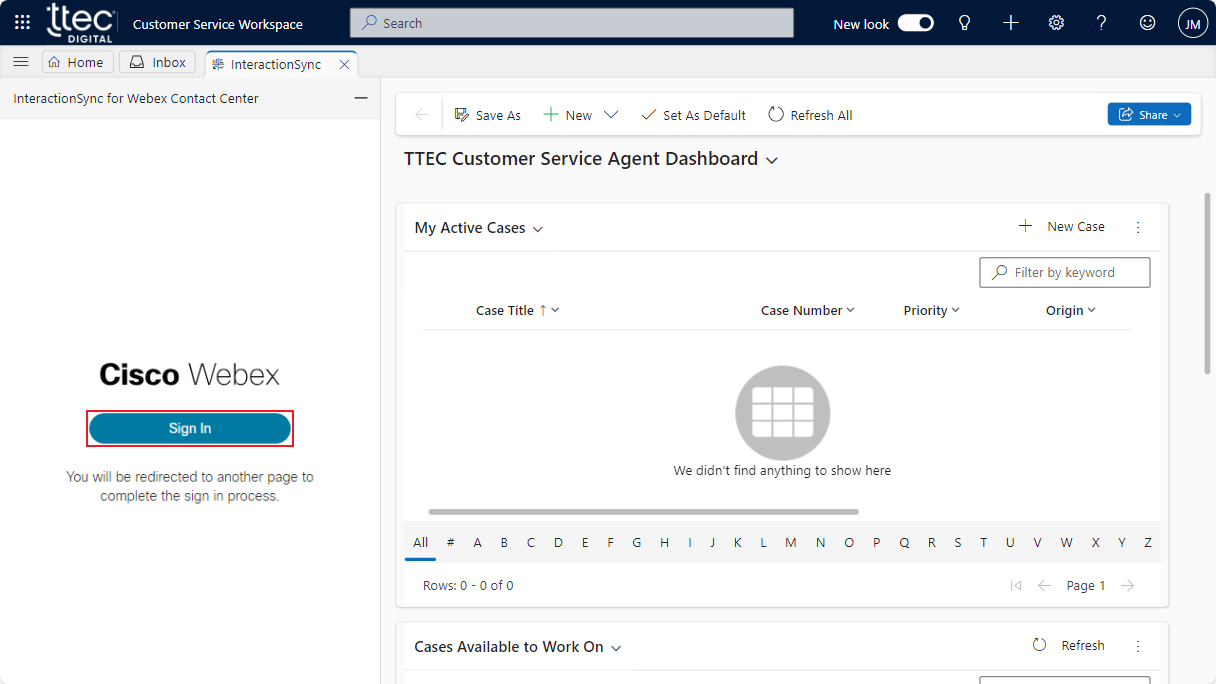
- Click the Sign In button located in the Webex pane within Dynamics 365. This opens the Cisco Webex sign in page in a separate browser tab.
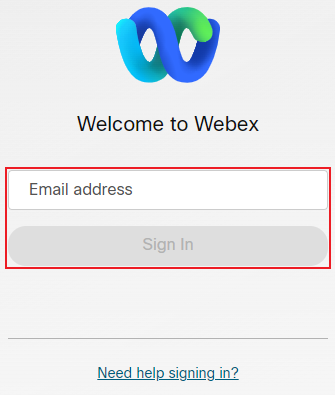
- Enter your email address into the Email address field and select the Sign In button.
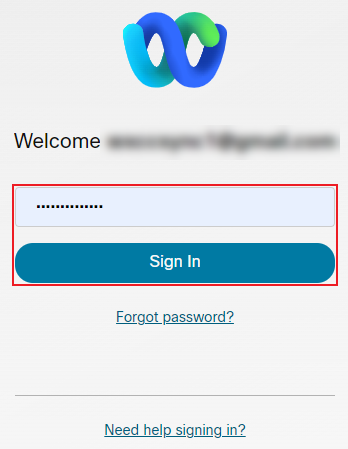
- Enter the password associated with your Webex account into the Password field, and then click the Sign In button to complete the sign in process.
For assistance with resetting your password, select the Forgot password link. If you are having trouble signing into your account, select the Need help signing in link, or get in touch with your contact center administrator.
- Configure the Station Credentials based on your assigned extension or phone device and click the Submit button to save the configuration.
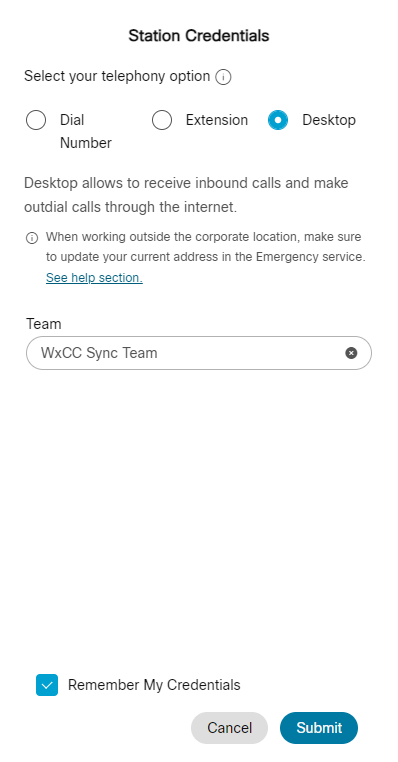
When you select the Desktop telephony option, the web browser prompts you to allow microphone access after you click the Submit button. You must accept this prompt to take calls.
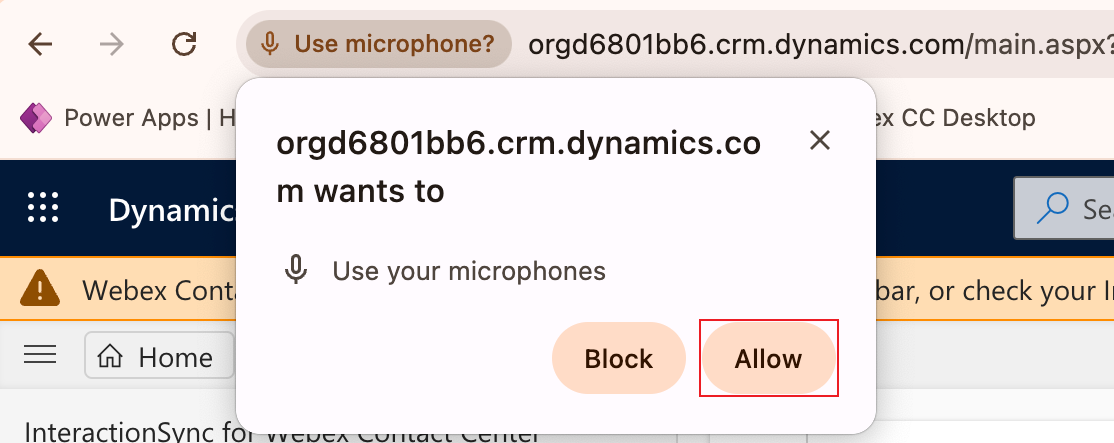
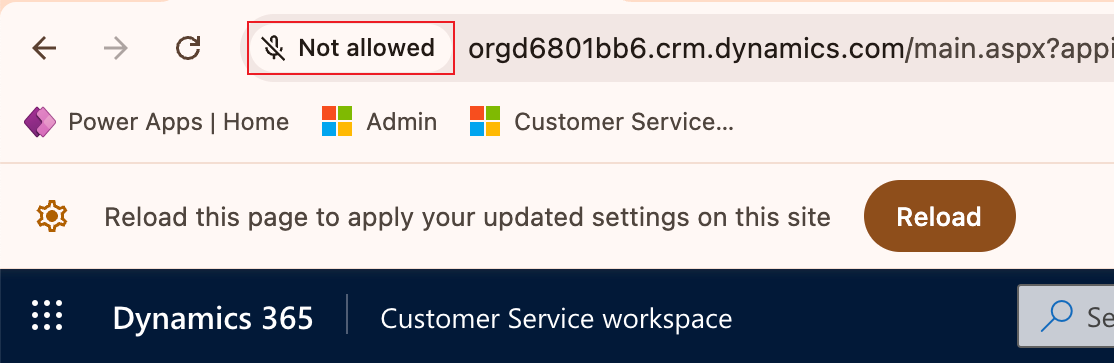
If you miss the prompt, look for a Disabled Microphone icon or microphone Not allowed button next to the URL at the top of the browser window to re-display the prompt.
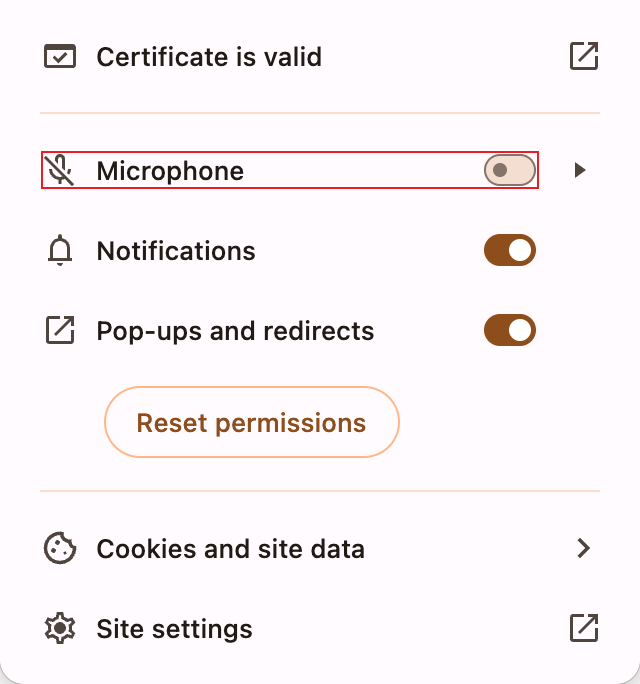
Ensure the Microphone option is enabled.
Identity Provider Single Sign-On Login Support
If Identity Provider (IdP) is enabled, agents can log in to Webex Contact Center using their organization's IdP credentials, enabling a seamless and secure Single Sign-On (SSO) experience.