Manage Interactions
InteractionSync for Cisco Webex Contact Center integrates Cisco Webex Contact Center within the Dynamics 365 CRM interface, allowing you to manage all customer interactions with the following added features:
- Screen pops
- View contact attributes
- Customer follow-ups
- Queued callbacks
- Wrap up
- Automatic activity records
- Click to dial
Accessing Cisco Webex Contact Center and Dynamics 365 Documentation
Cisco and Microsoft both offer great documentation for learning how to use the many features of Cisco Webex and Dynamics 365. Access the links below to find support and learn the basics for using these services:
Cisco Webex Contact Center Help Center
Microsoft Dynamics 365 Documentation
Using Screen Pops
Depending on your organization's InteractionSync for Cisco Webex Contact Center queue configuration, Dynamics 365 may automatically display screen pops (also known as entities) matched to an interaction upon receipt or upon acceptance. These entities allow you to view, update, or collect specific information related to the call or the contact. To learn more about screen pops, refer to the Using Screen Pops topic.
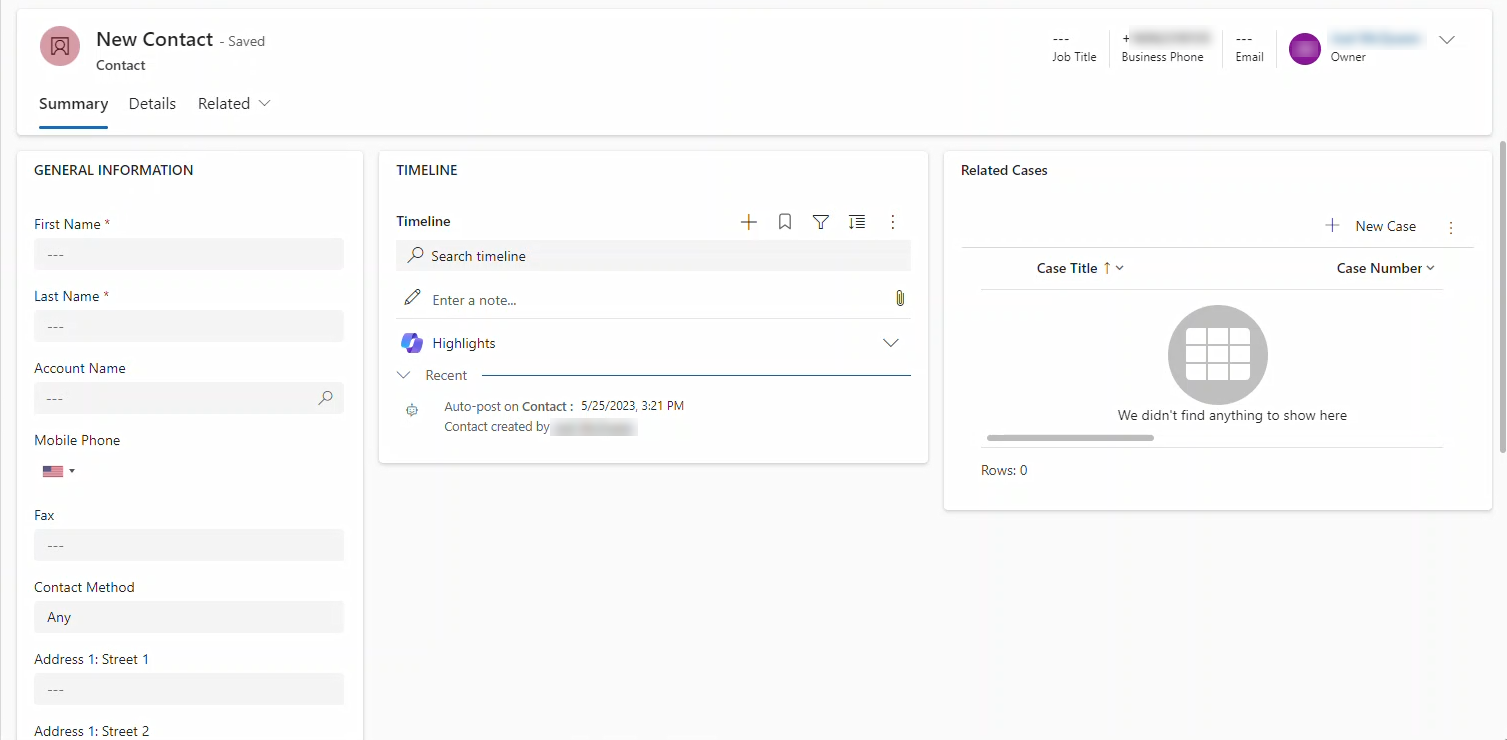
Dynamics 365 may automatically display screen pops (also known as entities) matched to an interaction upon receipt or upon acceptance. These entities allow you to view, update, or collect specific information related to the call or the contact. To learn more about screen pops, refer to the Using Screen Pops topic.
Managing Interactions
Chat
Agents manage chat interactions in InteractionSync in the same way they manage phone calls. Agents receive incoming chats, view screen pops based on configuration, and log activity records.
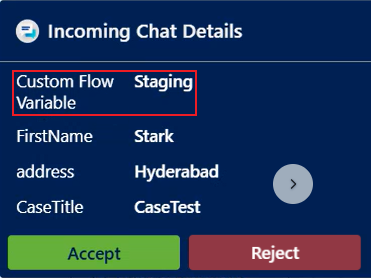
- Inbound Chat Handling: Agents can accept incoming chats from a configured chat test page.
- Screen Pop Support: When a chat is received, a screen pop appears based on the configured entity (e.g., Lead, Opportunity, Case, Contact, Account).
- Activity Record Creation: Each chat results in an activity record that includes fields defined in the configuration page.
- Queue Scope Configuration: If a Queue Scope configuration matches the name of the chat queue, it overrides the default configuration for that interaction.
- Contact Attributes: If your contact center administrator has enabled this feature, contact attributes display key customer details directly within the chat notification or interaction panel. This allows you to quickly understand who you are speaking with without needing to search or open additional records. Common contact attributes may include:
- Name
- Account type
- Status
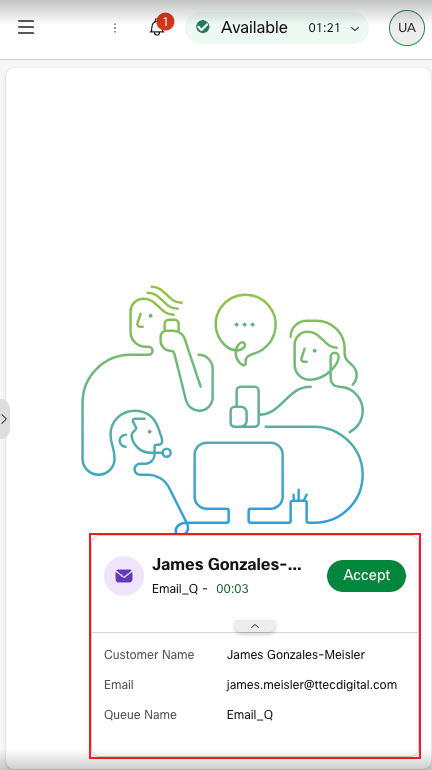
Agents can receive, respond to, and manage email interactions directly within the InteractionSync interface. This feature includes:
- Email Routing and Screen Pop: When an email is routed to an agent, a screen pop displays the email content and sender details. (See the example below.)
- Email Activity Entity: Each email interaction is tracked as a unique activity, similar to voice or chat interactions.
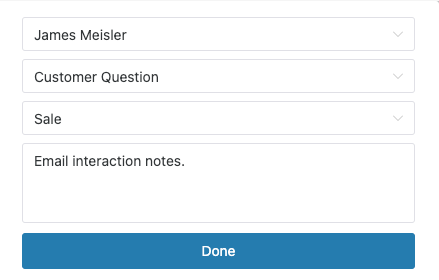
- Wrap Up Support: Agents can apply wrap up codes and notes after completing an email interaction. For more information about the wrap up process, see Wrap Up After Email Interaction.
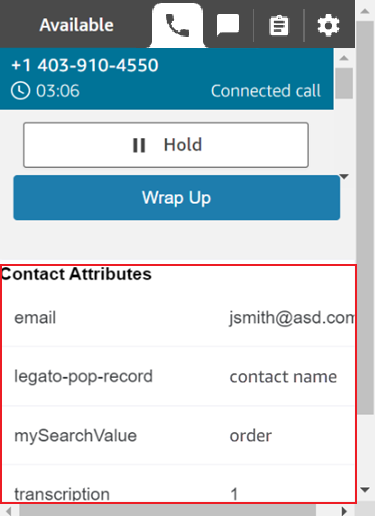
Viewing Contact Attributes
Contact attributes are configured and defined by the administrator and provide important information about the incoming contact. They are displayed within the Webex Agent Desktop upon receiving a call, allowing you to
Wrap Up a Call
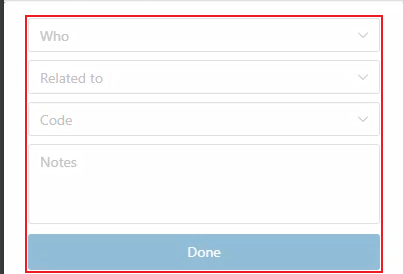
To ensure the contact or interaction information and details are properly synchronized with Dynamics 365, use the Wrap Up feature during or after an interaction. After clicking the Wrap Up button, you can select options from the following fields:
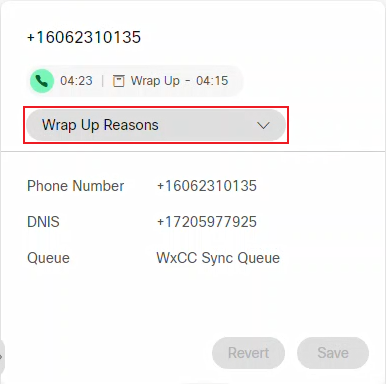
Wrap Up During a Call
- Click on the Wrap Up Reasons button.
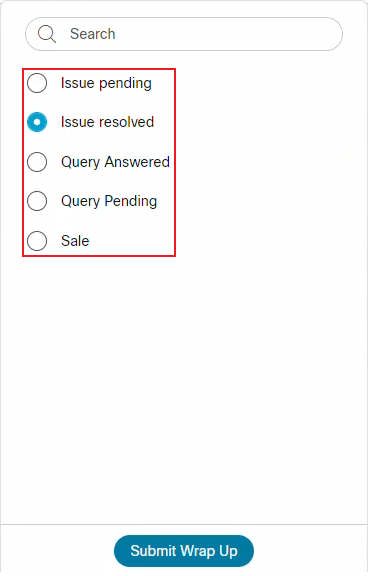
- Select from a list of reasons to use for the wrap up, and click the Submit Wrap Up button when finished.
Wrap Up After a Call Has Ended
- Who – Can include the following:
- Contacts
- Leads
- System Users
- Related To – This drop-down menu lists case records linked to the contact matched with the call. Select the one that best describes the call topic, or leave it blank if none apply.
- Code – Includes a list of wrap up codes for you to select.
- Notes – Enter any notes or details you also want to include in the wrap up. Any note entered is added to the activity record.
Wrap Up After Email Interaction
When the email interaction is completed, the wrap-up UI displays. Complete the form and select Done.
Auto-Select Contact in Wrap-Up Dialog
InteractionSync automatically pre-selects the most relevant contact, customer, or account in the Who drop-down during wrap-up, based on the tabs opened during the interaction.
Behavior Overview
- Single Tab Match:
If only one Contact, Customer, or Account tab was opened during the interaction, InteractionSync automatically selects that entity in the Who drop-down.
- Multiple Tabs with Screen Pop Match:
If multiple tabs were opened, and one matches the screen pop entity for the interaction, InteractionSync selects that matching entity.
- Multiple Tabs with No Match:
If multiple tabs were opened and none match the screen pop, InteractionSync loads all relevant entities into the drop-down, but does not pre-select one.
Using the Click-to-Dial Feature
InteractionSync adds another useful feature with its integration into Dynamics 365 by letting you click-to-dial a contact's telephone number from within a displayed entity. When you see a telephone number, click the Click-to-Dial icon located beside it to automatically call the contact using Webex Agent Desktop.
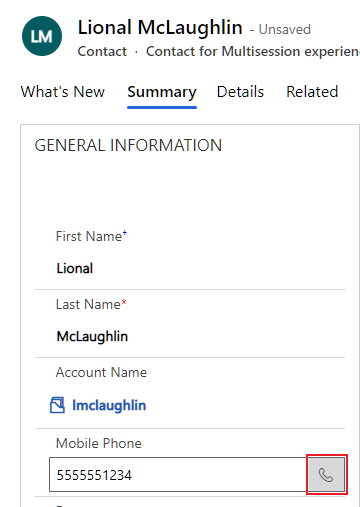
Click-to-Dial Icon
If your contact center has one or more Outbound ANI (Caller ID) numbers configured, when you click a phone number to dial, a popup appears in the InteractionSync sidebar. This popup lists all available Outbound ANI numbers allowing you to select the appropriate number before the call is placed.