Locating an Id to use in a flow
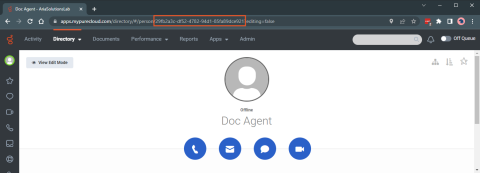
userId
- In Genesys Cloud, go to Directory > My Organization.
- Select the agent.
- In the URL of the selected agent, the userId is displayed.
queueId
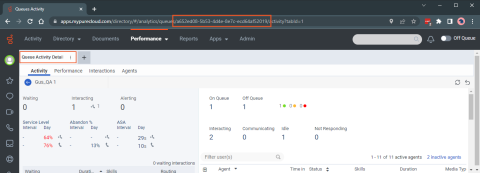
- In Genesys Cloud, go to Performance > Workspace > Queue Activity.
- Select the queue to view the Queue Activity Detail.
- In the URL of the browser page for the selected queue, the queueId is displayed.
wrapupId
- In Genesys Cloud, go to Performance > Workspace > Wrap-Up Performance.
- Select the wrap-up code and click Add to filters.
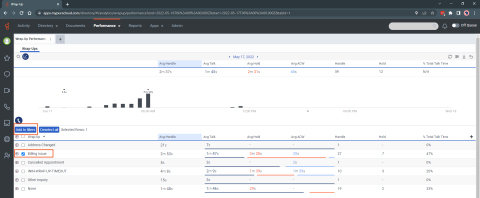
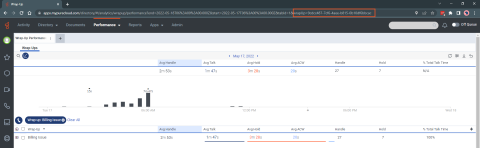
- In the URL of the browser page of the selected wrap-up code, the wrapupId is displayed.
externalContactId
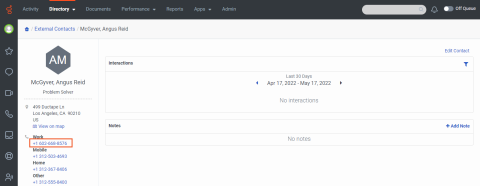
- In Genesys Cloud, go to Directory > External Contacts.
- Select the contact.
- The phone number of the contact is the unique identifier.
CallCenterId
-
In Salesforce, go to Setup > Developer Console.
-
Run the query
select oneview__CallCenterId__c from oneview__Configuration__cin the Query Editor and click Execute.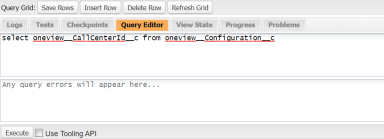
-
The CallCenterId from the Query Results is the value for
oneview_CallCenterId_cfield in the CreateRecords.
Genesys Cloud Open Messaging Integration Id
-
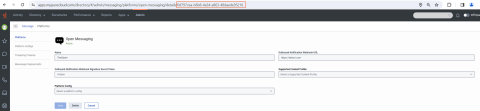
In Genesys Cloud, go to Admin.
-
Navigate to Message section, and select Platforms.
-
Click the Configure button, located to the right of the configured Open Messaging integration.
-
In the browser's page URL of the selected Open Messaging, the Integration id is displayed at the end.
Salesforce CallCenterId
1. In Salesforce, go to Setup > Developer Console.
2. Run the query select name, id from CallCenter in the Query Editor and click Execute.
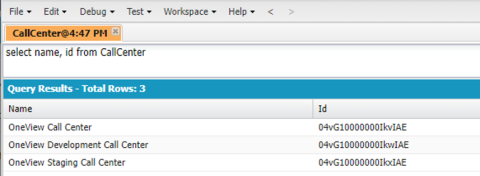
3. The Call CenterId from the Query Results is the value for oneview_CallCenterId_c field in the Create Records.